Help Articles
What This Guide Does — Shows how to upload documents to your Help Articles.
Why It Is Useful — Help Articles are what the Chatbot Agent uses to answer customer questions accurately, so keeping them current keeps its answers accurate too.
How to Use It
1
Open Help Articles
Under Content & Resources, click Knowledge Base.
2
Add a Document
Click + Add Documents in the top-right corner.
3
Select or Drag Your File
Click the upload area or drag and drop a PDF, DOC, or DOCX file.
4
Upload the Selected Document
Check the filename, then click Upload and wait for processing to finish.
5
Confirm the Upload
The document appears in the list and the document/storage counters update.
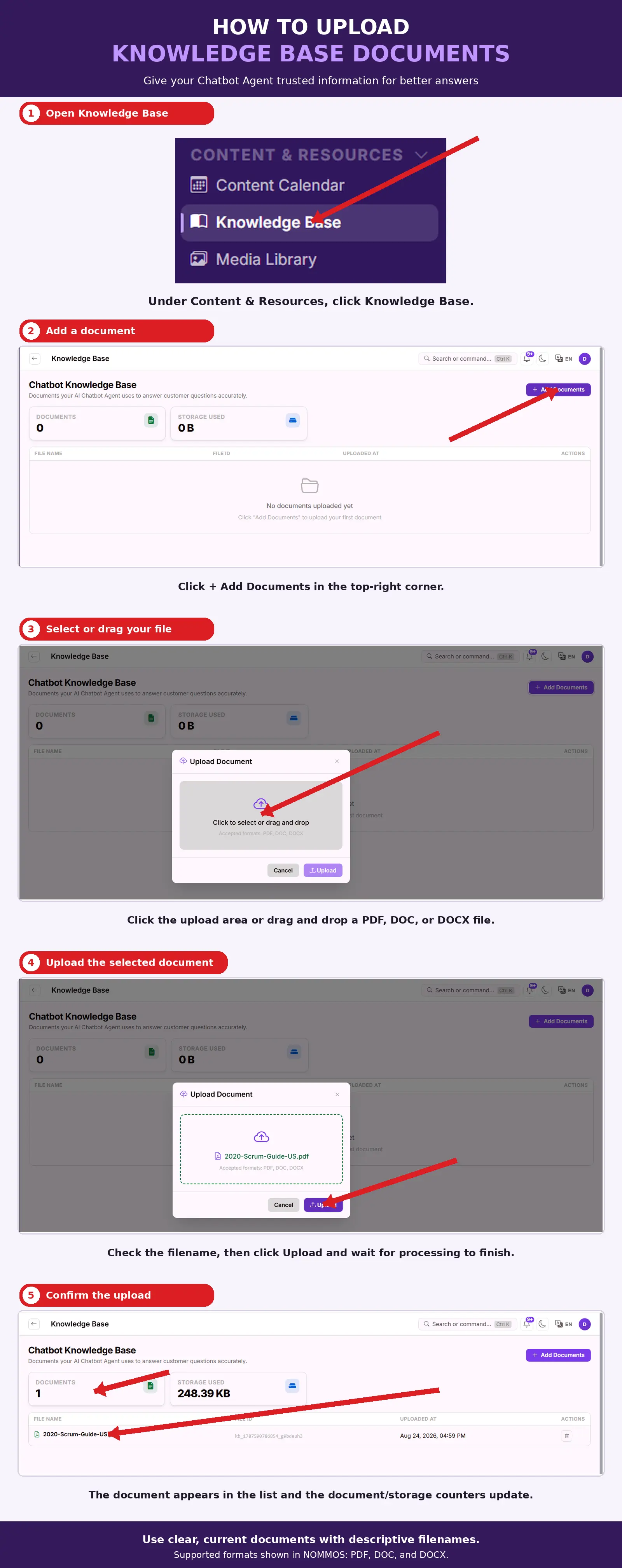
What You Should See — The uploaded document appears in the file list with its upload date, and the Documents and Storage Used counters update.
Tips
- Use clear, current documents with descriptive filenames.
- Supported formats shown in NOMMOS: PDF, DOC, and DOCX.
Related Guides