Customers
What This Guide Does — Explains the Customers dashboard and how to find and prioritize the right contacts.
Why It Is Useful — Surfaces who's about to convert or churn without manually digging through raw data, so you know who to reach out to first.
How to Use It
Open Customers
Go to Audience and click Customers.
Choose Time Range or Add Data
Select a time range to analyze performance, and use the buttons to import or add contacts.
Review Key Contact Metrics
Get an overview of your audience and AI-powered insights: Total Customers, Likely to Convert, Recently Active, Dormant Customers, High Churn Risk, High Value Customers.
Search and Filter Customers
Search by name, email, or phone, and use filters or Quick Filters to narrow results.
Prioritize the Right Customers
Focus on contacts with high AI scores, at-risk health, or high priority recommendations.
Add a New Contact
Enter contact details, choose a stage, select opt-in channels, and save.
Import Customers from CSV
Upload your CSV file, choose a matching rule, and map fields.
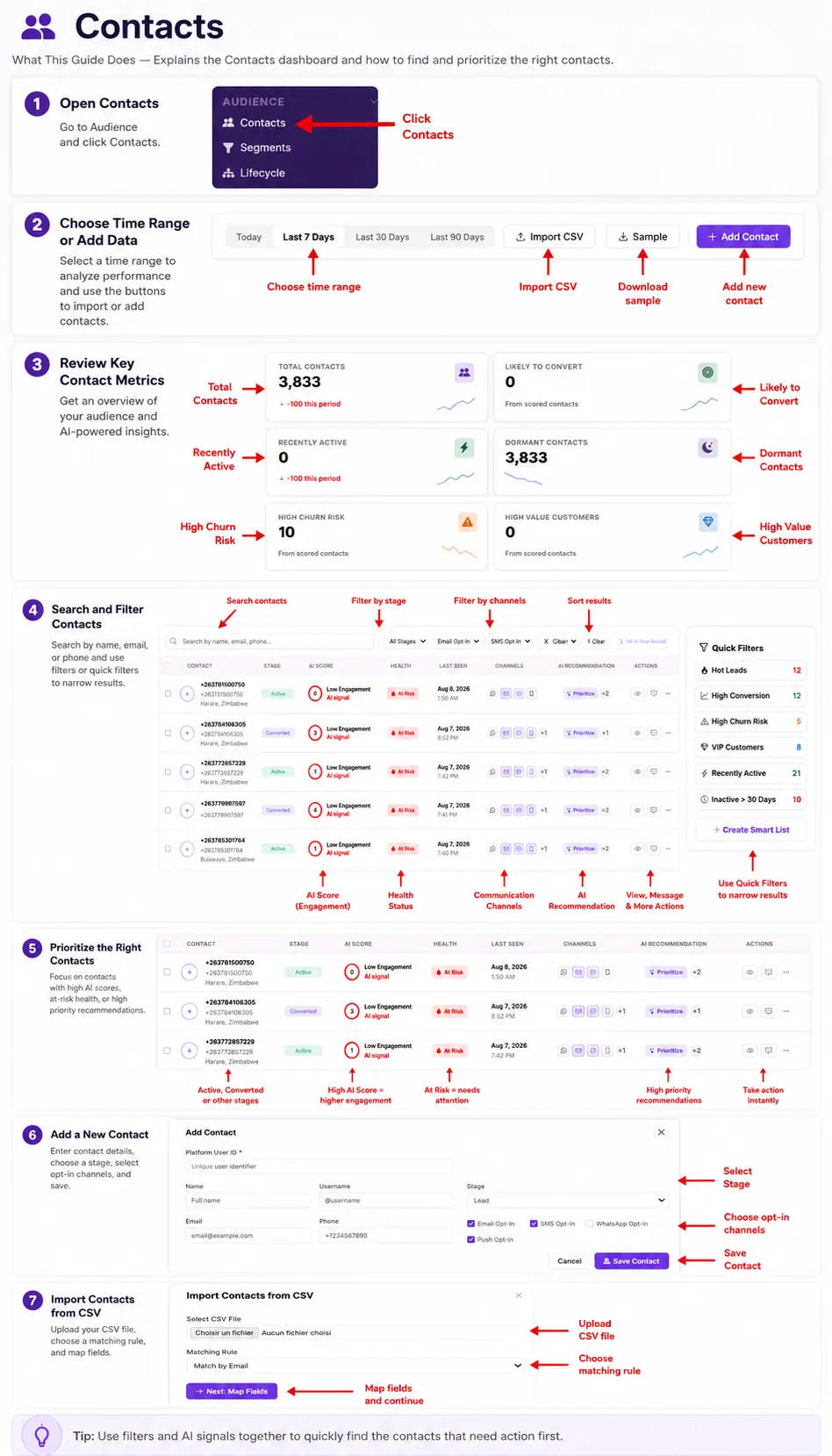
What You Should See — A contact table you can search and filter down in one click, with each row's AI Score and Health Status pointing you toward who to act on next.
Tips
- Use filters and AI signals together to quickly find the contacts that need action first.
Related Guides