Inbox
What This Guide Does — Explains the Inbox, the Needs Human queue, and how to start a new conversation.
Why It Is Useful — Keeps every incoming message in one place, and makes clear which conversations still need a person to step in.
How to Use It
Open the Conversations Inbox
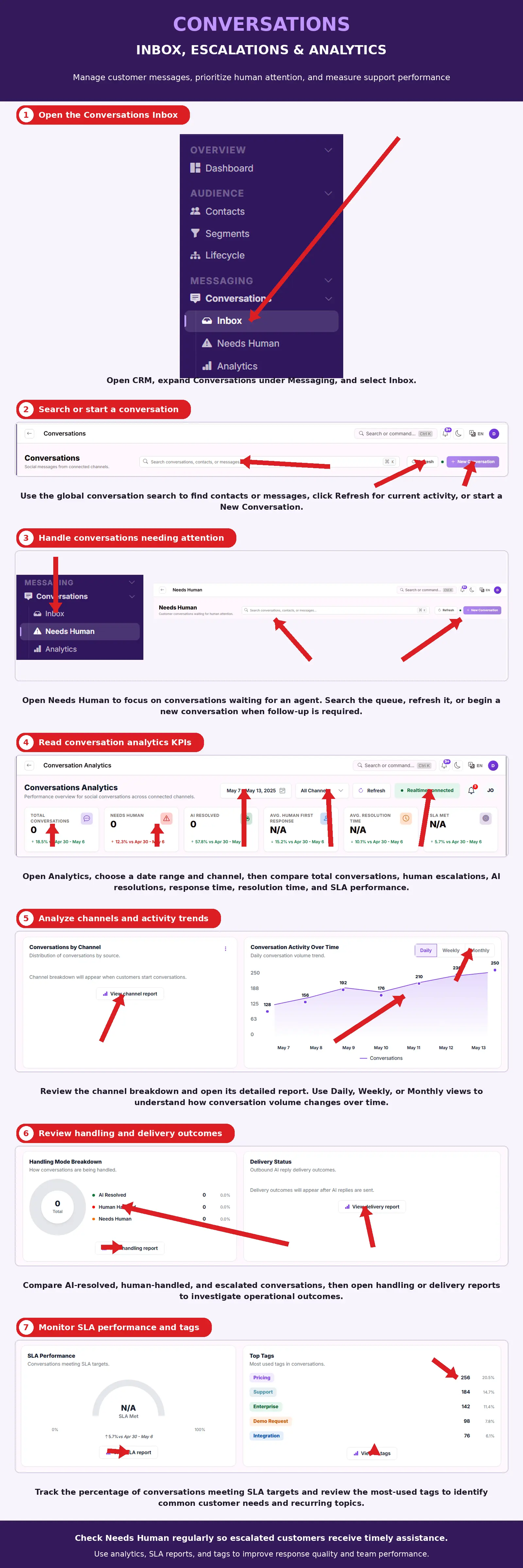
Open CRM, expand Conversations under Messaging, and select Inbox.
Search or Start a Conversation
Use the global conversation search to find contacts or messages, click Refresh for current activity, or start a New Conversation.
Handle Conversations Needing Attention
Open Needs Human to focus on conversations waiting for an agent. Search the queue, refresh it, or begin a new conversation when follow-up is required.
Read Conversation Analytics KPIs
Open Analytics, choose a date range and channel, then compare total conversations, human escalations, AI resolutions, response time, resolution time, and SLA performance.
Analyze Channels and Activity Trends
Review the channel breakdown and open its detailed report. Use Daily, Weekly, or Monthly views to understand how conversation volume changes over time.
Review Handling and Delivery Outcomes
Compare AI-resolved, human-handled, and escalated conversations, then open handling or delivery reports to investigate operational outcomes.
Monitor SLA Performance and Tags
Track the percentage of conversations meeting SLA targets and review the most-used tags to identify common customer needs and recurring topics.
What You Should See — New messages arriving in the Inbox in real time, escalated ones appearing in Needs Human until resolved, and Analytics reflecting each conversation's outcome and SLA status.
Tips
- Check Needs Human regularly so escalated customers receive timely assistance.
- Use analytics, SLA reports, and tags to improve response quality and team performance.
Related Guides