Social Media Manager
What This Guide Does — Explains how to review, validate, publish, and manage the Social Media Manager's AI-generated content.
Why It Is Useful — The agent drafts posts for your connected platforms automatically; this page shows you how to review that work, validate it, and publish it with confidence.
Before You Start — Connect at least one platform, such as Facebook or Instagram, so the agent has somewhere to publish.
How to Use It
Open the Social Media Manager
Under Social Media & Advertising, select Social Media Manager.
Understand AI Content Ready
Check the pending-review count. Select Publish Now for the latest item or Preview Now to review the queue.
Choose a Platform to Review
Select Instagram or Facebook, then select Apply to open that platform's pending content.
Review the Queue and Device Preview
Choose an item from the queue and switch between Desktop, Tablet, and Mobile previews.
Manage the Generated Content
Review the copy and media. Skip, Edit, Reject, or select an image and Validate & Preview.
Publish Validated Content
Confirm successful validation, then Publish — or Reject/Edit Again if the post still needs changes.
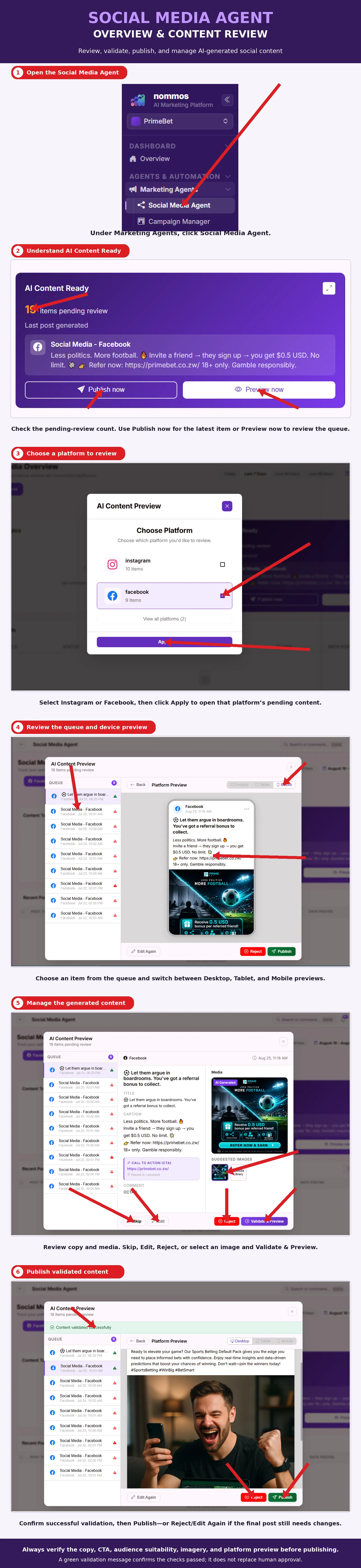
What You Should See — Reviewed content moves from the pending-review queue to a validated state, and once published, appears live on the selected platform.
Tips
- Always verify the copy, CTA, audience suitability, imagery, and platform preview before publishing.
- A green validation message confirms the checks passed — it does not replace human approval.
Related Guides