Automatic Messages
What This Guide Does — Shows how to create a rule that sends a message automatically when a specific event happens.
Why It Is Useful — Lets you respond to contact behavior instantly and consistently, without sending each message by hand.
How to Use It
1
Open CRM
Under CRM & Audience, click CRM.
2
Open Automations
Under Messaging, click Automations.
3
Create a New Rule
Click New Rule.
4
Define the Trigger and Audience
Name the rule, choose its trigger, set a delay, and optionally restrict it to an audience group.
5
Choose Channels and Save
Enable each delivery channel, assign its active template, then click Save Rule.
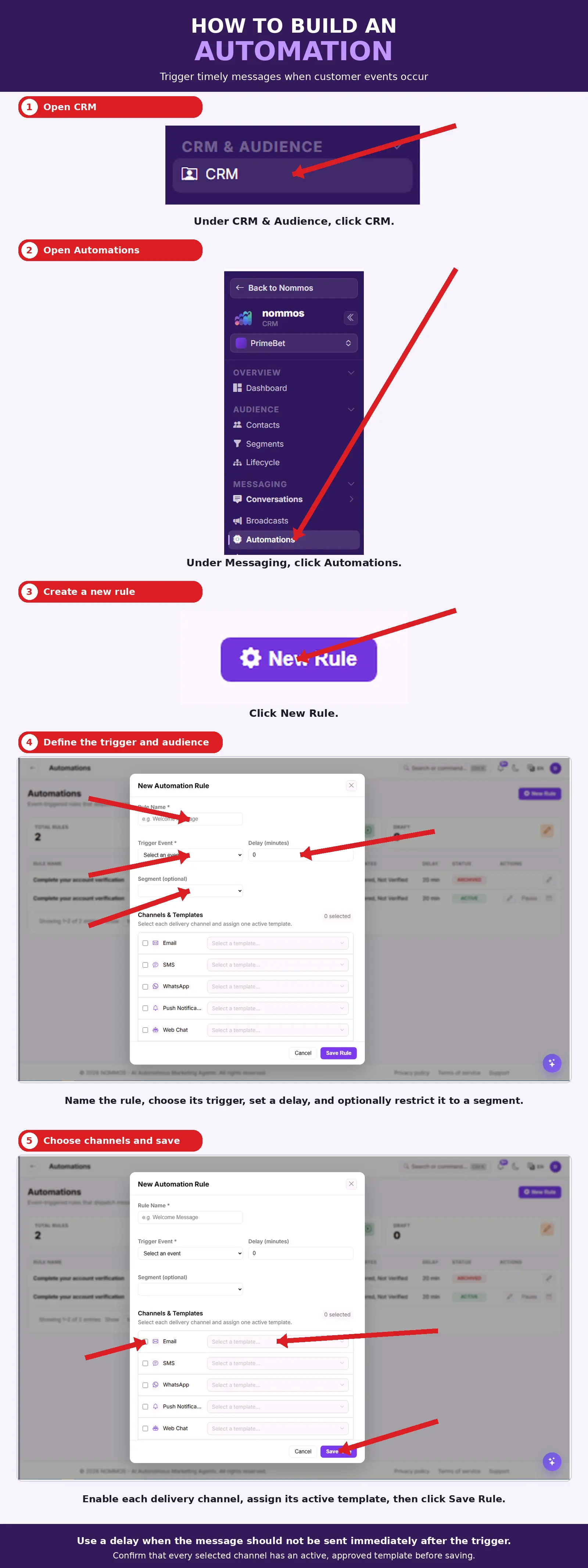
What You Should See — The new rule appears in your Automations list as Active, and fires automatically the next time its trigger event occurs.
Tips
- Use a delay when the message should not be sent immediately after the trigger.
- Confirm that every selected channel has an active, approved template before saving.
Related Guides