Message Templates
What This Guide Does — Shows how to create, activate, and archive a message template.
Why It Is Useful — Message Templates hold your reusable message content, so One-Time Messages, Automatic Messages, and Customer Journeys can all send consistent, on-brand messages without rewriting them each time.
How to Use It
Open Message Templates
Go to Messaging and click Message Templates in the left menu.
Review the Template List
Check total, active, draft, and archived templates.
Create a New Template
Click New Template and choose Standard template or WhatsApp (Meta-approved).
Fill in a Standard Template
Enter the template name, choose a channel, write the message, add a call-to-action, and save.
Build a WhatsApp Template
Complete Basic Info, add Content, then review and submit for approval.
Activate or Archive
Use the status and action controls to keep your templates organized.
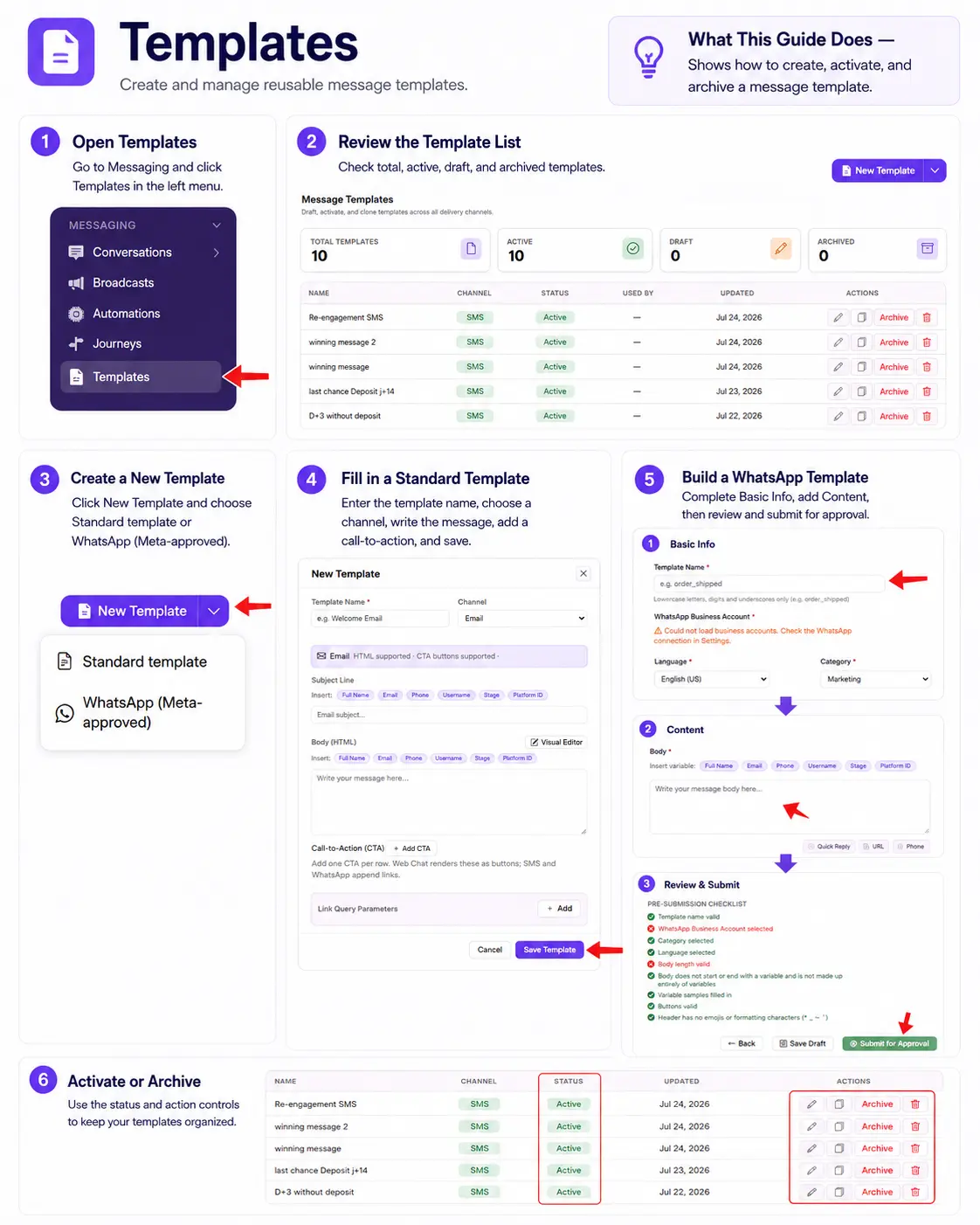
What You Should See — Your new template appears in the template list as Active, and is selectable from One-Time Messages, Automatic Messages, and Customer Journeys.
Tips
- Use Archive instead of deleting a template that's no longer active, so past broadcasts and automations that used it keep their history.
Related Guides